Desktop overview
The desktop overview shows live previews of all desktop pages in a grid, with a zoom in/out animation.
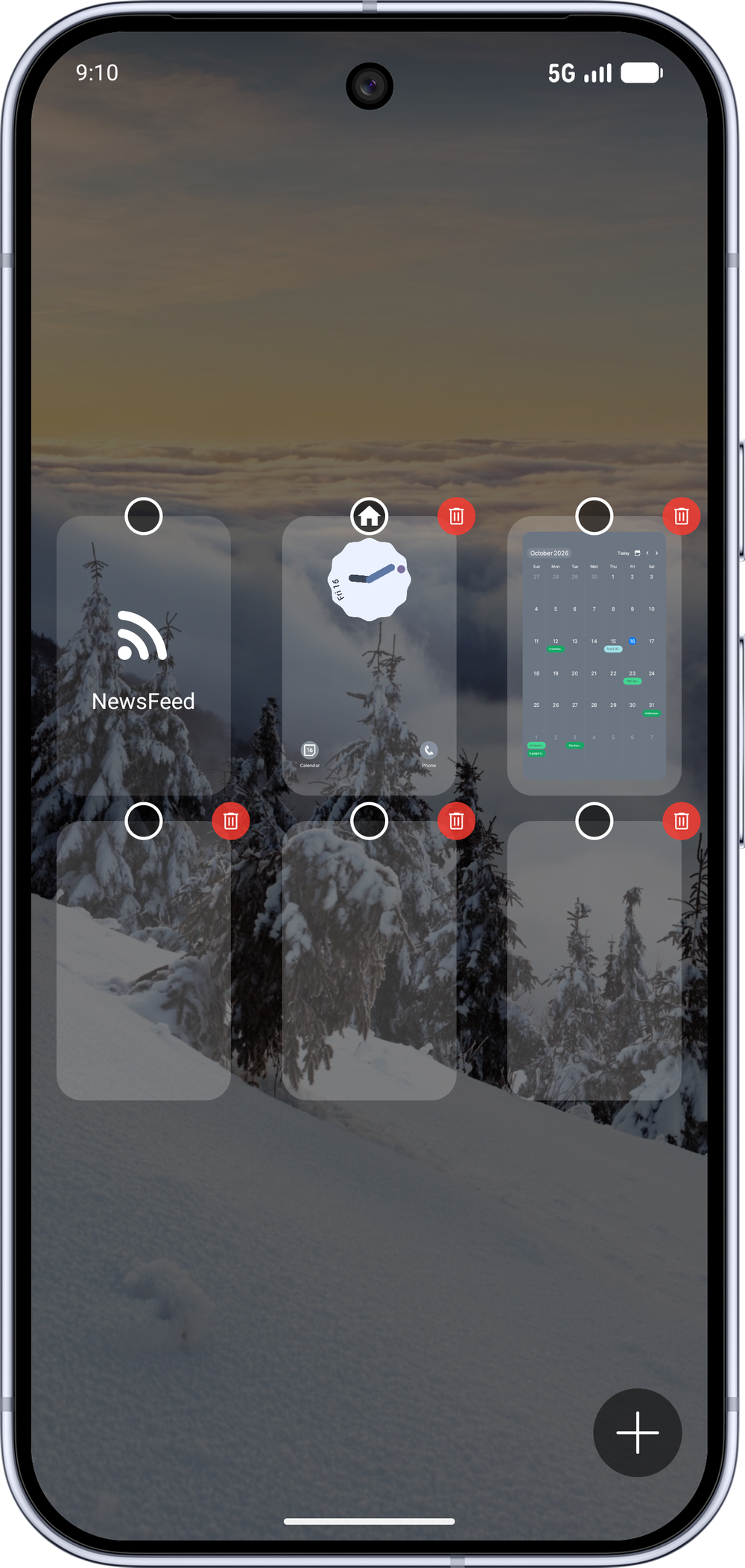
Open the overview
Long-press the page indicator (the dots below the desktops) and hold still for about 2 seconds.
Reorder desktop pages
Long-press a preview, then drag it to its new position.
The new order is saved (per display profile on foldables with a separate unfolded layout).
Add a new desktop page
Tap the "+" button in the overview.
You can have up to six desktop pages.
Delete a desktop page
Tap the delete badge on the preview.
The last remaining page cannot be deleted.
Choose the default home-screen page
Every preview has a circle badge centered on its top edge. Tap it to make that page the default home-screen page: the page shown after launch and when the Home button is pressed.
The current default page shows a house icon inside its circle; the other circles are empty rings.
The NewsFeed page (when enabled) and the app-list page (when the app drawer is set to last-page mode) also appear in the overview with an icon and label. They can be chosen as the default page too, but they sit at fixed positions: they cannot be reordered or deleted.
Close the overview
Tap outside the previews, or
Press back (returns to the current page without switching).